
CleanerHQ · For cleaning businesses
Check crew time with location details.
CleanerHQ’s GPS clock-in checks add location context to crew time records. Review the job time and any location flag before you approve the entry.
- Review start and end times
- Find location flags
- Check entries before approval
1-minute overview · Filmed in the CleanerHQ app
See it with your own jobs.
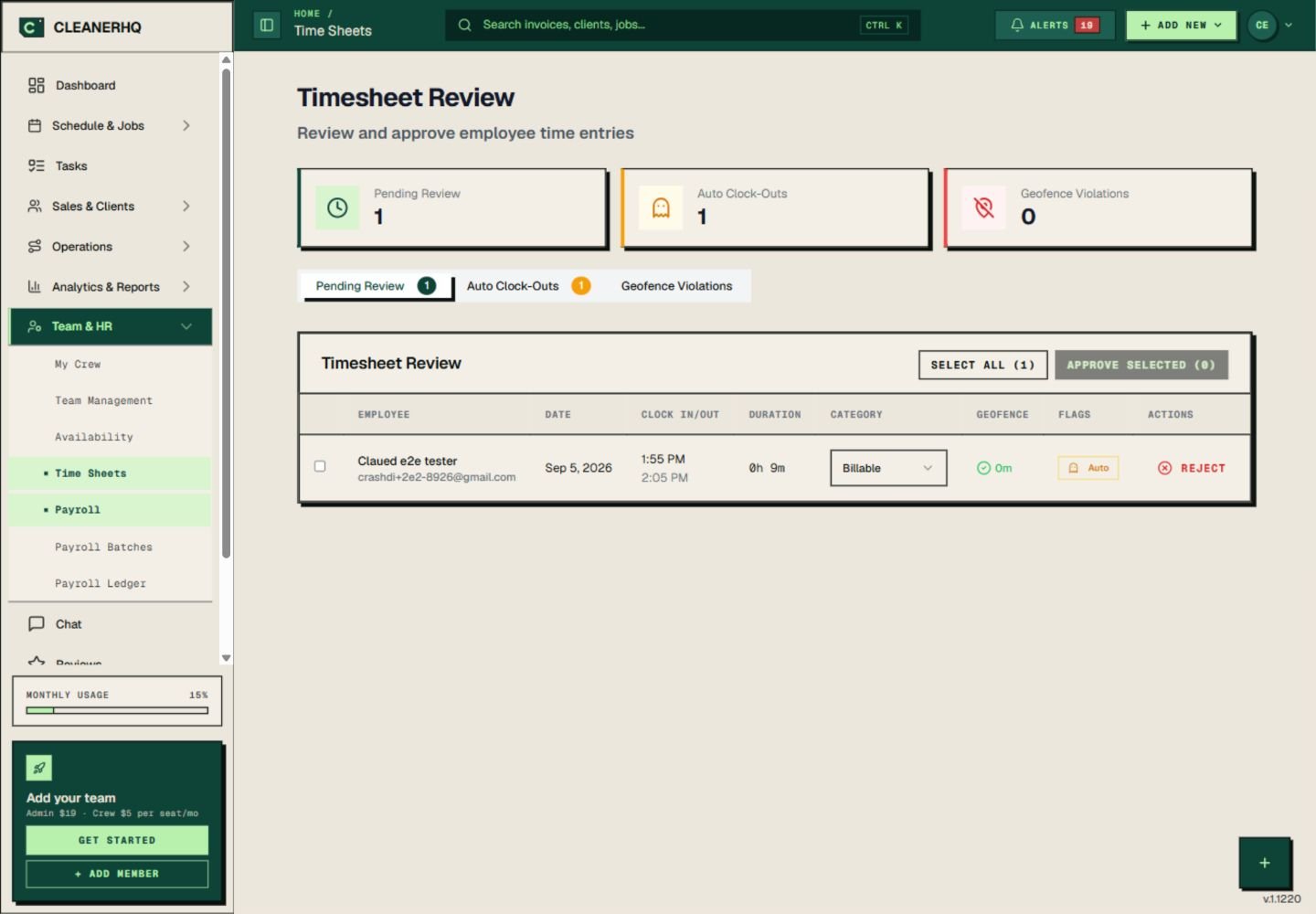
Filmed in the CleanerHQ app with a demo account in October 2026. Names and amounts are sample data. Prefer a still? Open the full-size screenshot.
Read the video transcript
Before approving hours, check the record behind them. In CleanerHQ, your crew clocks in on the job from their phone. The entry records the time, the job, and whether they were actually on site. Back at the office, every entry waits for review. Location checks, auto clock-outs, and anything unusual are flagged where you can see them. Reject the punch that doesn’t line up. Approve the hours that do, before they reach payroll. Hours become a record you can stand behind — for your team and for your customers. Try CleanerHQ for yourself. Sign up for your 14-day free trial.
Review GPS clock-in checks with the job
The time list shows each person’s start and end times, the hours recorded, and a location check. Entries with location flags have their own tab.
Use those details to review the shift. A location flag is a prompt to check what happened, not proof that someone did something wrong.
Know what a location limit means
A geofence is a set area around the job site. The app uses that area to check where someone clocked in.
A large site, poor signal, or phone settings can affect the reading. Ask the crew member about a flag before you decide what it means.
Make the time record clear
Use the date and job details to check the entry. Confirm any missing or unusual time with the crew member.
Keep this review separate from the automatic clock-out check, which helps find a shift left running.
Explain the check to your team
Tell the crew when location is used and why it is part of the time record. Make sure each person knows the clock-in steps for their phone.
Read CleanerHQ’s privacy policy for the stated use of location data.
Questions about this feature
What does “Geofence” mean on the screen?
It means the set area around a job site used for a location check.
Does a location flag prove that a time entry is wrong?
No. Review the job details, the location reading, and the crew member’s account before you decide.
See the related steps
- Automatic Clock-Out Review for Cleaners →
- Cleaning Team Management Software →
- Cleaning Business Scheduling Software →
- SOS Safety Alerts for Cleaning Teams →
See how the steps fit together in CleanerHQ’s cleaning business software.
Bring one job to a demo