
CleanerHQ · For cleaning businesses
Keep your cleaning team’s details together.
CleanerHQ’s cleaning team management software keeps staff access, working hours, and time records within reach. Give each person the access they need for their work.
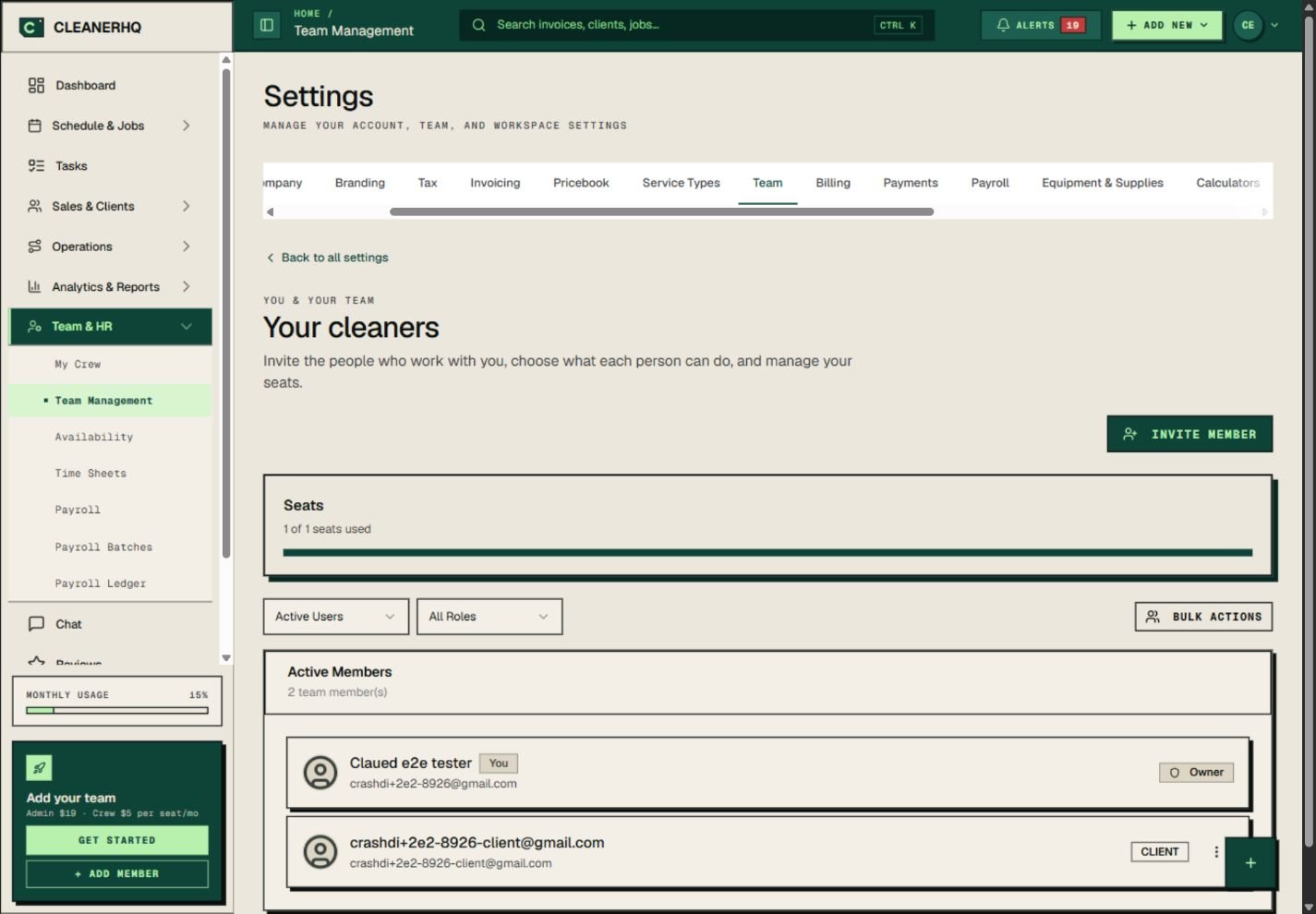
Team management in CleanerHQ lists active members and their roles. You invite a team member by email and choose a role: a crew member gets their own schedule, jobs, and time clock, and an admin manages crew, schedules, and settings. Working hours are set in Availability, and recorded time is reviewed in Time Sheets.
- See active team members
- Choose staff roles
- Check working hours
1-minute overview · Filmed in the CleanerHQ app
See it with your own jobs.
Filmed in the CleanerHQ app with a demo account in October 2026. Names and amounts are sample data. Prefer a still? Open the full-size screenshot.
Read the video transcript
Adding a cleaner shouldn’t mean giving them access to everything. In CleanerHQ, invite a new team member by email and choose what they can do. A crew member gets their own schedule, their jobs, and their time clock. Admins can run the operation — crew, schedules, and settings. When Ana accepts the invitation, she sets the hours she can work each week, so you only ever assign jobs that actually fit. The right people, the right access, and a team that’s ready to be scheduled. Try CleanerHQ for yourself. Sign up for your 14-day free trial.
Start with the cleaning team list
The team page shows active members and their roles. You can filter the list by status or role when you need to find someone.
Keep the list current as people join or leave. Check a person’s email before you send an invite.
Give people the right access
The owner and crew do different work. Choose a role that fits what each person needs to see and do.
Review seat use before you add people. Read the current seat prices and paid extras so you know what your team will cost.
Set working hours before you assign jobs
Use Availability for working days and hours. Then check the schedule when you plan the week.
A person on the team list is not always free for a job. Allow for time off, travel, and the work already assigned.
Review the hours that come back
Use the time review screen to check crew entries. Look at start and end times, location flags, and automatic clock-outs.
Speak with the crew member when a record needs explaining. Keep the final hours clear before approval.
Questions about this feature
Where do I see who has access?
Open Team Management to see the active member list and each person’s role. Filters help you narrow the list.
Is a team member’s working time kept here too?
Working hours have their own Availability screen. Recorded time is reviewed in Time Sheets. Both are linked from the team area.
See the related steps
- Cleaning Business Scheduling Software →
- GPS Clock-In Checks for Cleaning Teams →
- Automatic Clock-Out Review for Cleaners →
- Cleaning Supply Tracking and Stock Checks →
- Multilingual Chat for Cleaning Teams →
- SOS Safety Alerts for Cleaning Teams →
See how the steps fit together in CleanerHQ’s cleaning business software.
Create your accountEmail us for a 15-minute demo →