
CleanerHQ · For cleaning businesses
Keep crew safety alerts in view.
CleanerHQ’s SOS safety alerts give the owner a place to see alerts raised by the team. Review the alert, mark that you have seen it, and record when it is resolved.
- View crew alerts
- Mark an alert as seen
- Track its status
CleanerHQ launches November 8, 2026. See prices and trial terms.
See it in CleanerHQ
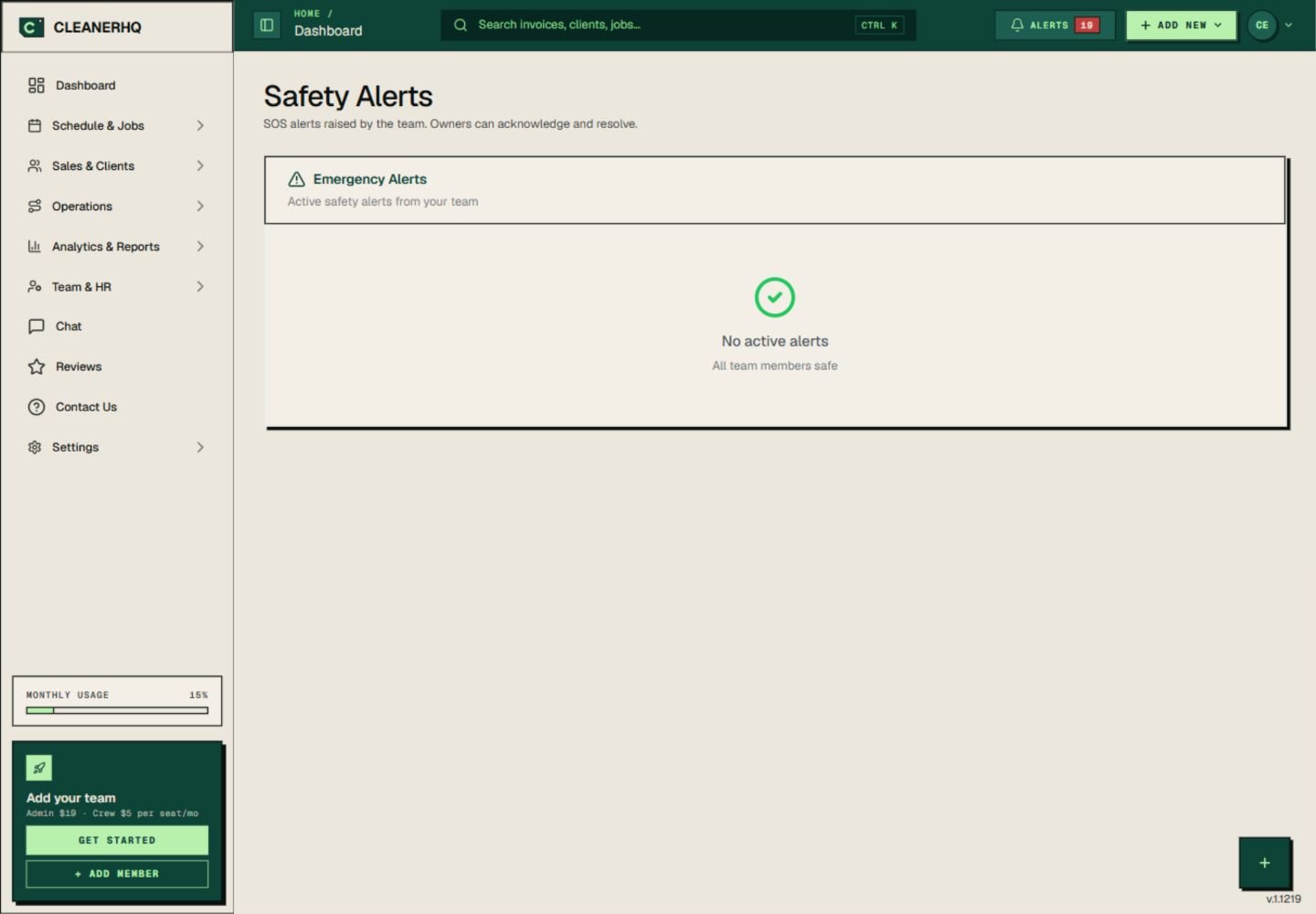
See SOS safety alerts on desktop
The Safety Alerts page brings the team’s active alerts into one view. Owners can acknowledge an alert and mark it resolved.
Acknowledge means you have seen it. It should not stand in for checking on the person or taking the next step.
Give each alert a clear owner
Choose who will watch for alerts during working hours. Make sure that person knows how to reach the crew and who should take over if they are away.
Keep the job address and contact details current. An alert is more useful when the person responding can find the right site.
Keep a separate emergency plan
An app alert does not replace emergency services. In immediate danger, use the local emergency number when it is safe to do so.
Phone signal, device settings, and network access can affect an alert. No active alert on a screen is not proof that everyone is safe.
Connect the alert to the day’s work
Use the schedule and team records to find the crew and job context.
Use chat for routine work messages. Keep the response to a safety alert clear and direct.
Questions about this feature
Is there a desktop view for safety alerts?
Yes. The screenshot shows the Safety Alerts page in the CleanerHQ web app.
Does acknowledging an alert mean help has arrived?
No. It records that the alert has been seen. Your team still needs to follow its response plan and check on the person.
See the related steps
- Cleaning Team Management Software →
- Multilingual Chat for Cleaning Teams →
- GPS Clock-In Checks for Cleaning Teams →
See how the steps fit together in CleanerHQ’s cleaning business software.
Bring one job to a demo